
WordPress HubSpot Integration: Complete Setup Guide
|
Getting your Trinity Audio player ready...
|
Integrating WordPress and HubSpot is a game changer in the way you generate leads and customer relationship management. With this integration you can achieve enterprise level marketing automation in your site without any technical skills.
We have already carried out this integration on more than 50 companies in the areas of SaaS, e-commerce, and professional services. The findings are compelling: one of the clients reduced the lead response time to below 10 minutes in comparison to 6 hours.
Who This Guide Is For
This guide helps you if:
- You manage a WordPress-based site and do the marketing with HubSpot.
- You wish to have automated lead capture and not manual data entry.
- You require live tracking of visitors and web analytics.
- You are fed up with platform switching.
This isn’t for you if:
- You don’t have a WordPress website
- You’re not using HubSpot (or don’t plan to)
- You prefer manual lead management processes
What You’ll Learn
- Installing and configuring the HubSpot WordPress plugin in under 15 minutes
- Embedding HubSpot forms that automatically sync to your CRM
- Setting up visitor tracking and behavior analytics
- Choosing between WordPress and HubSpot CMS for your needs
- Troubleshooting common integration issues
- Connecting WooCommerce for complete e-commerce tracking
Why Connect WordPress and HubSpot
WordPress runs 43% of all websites. HubSpot powers marketing for over 200,000 businesses. Combined, they create a conversion machine.
The Business Case
Lead capture becomes effortless. Forms sync directly to HubSpot’s CRM. Every submission creates a contact record automatically. No spreadsheets. No manual transfers.
Marketing automation runs on autopilot. A visitor downloads your pricing guide? HubSpot triggers a nurture sequence immediately. They visit your pricing page five times? Your sales team gets notified.
Data lives in one place. See exactly how visitors interact with your site. Track their journey from first visit to closed deal.
Real example: A software enterprise that specializes in B2B dealings incorporated both platforms and grew qualified leads by 47 percent within 3 months. Their secret? Automated working processes activated by particular page visits.
What Integration Actually Does
The association allows a number of strong features:
Automatic visitor tracking monitors every page view and interaction. You can see what exactly will be appealing to the prospects.
Form synchronization will push each submission into HubSpot in real-time. Contact records fill up with the complete form information automatically.
Live chat integration helps you to connect with your visitors instantly. Discussions are saved in contacts to make future references.
Email marketing operates through WordPress. Design campaigns even in your dashboard.
Analytics dashboards indicate the pages that generate conversions. Take evidence-based choices on content strategy.
Understanding Your Integration Options
There are two major ways: the official HubSpot plugin and the more advanced solutions, such as WP Fusion.
The Official HubSpot Plugin
Best for: Most WordPress users who want straightforward HubSpot features.
It is a free plug-in that takes care of core integration requirements. Install it and you are up and running within minutes with your account attached.
What it includes:
- HubSpot tracking code installation
- Form and CTA embedding
- Live chat functionality
- Pop-up creation
- Basic analytics dashboard
- Email campaign management
Limitations: The native HubSpot Tools are the subject of the official plugin. It does not integrate other WordPress plugin with HubSpot.
WP Fusion for Advanced Needs
Best for: Businesses running membership sites, online courses, or complex marketing automation.
WP Fusion is priced at $297 a year but offers more integration. It integrates more than 150 WordPress extensions with HubSpot.
Advanced capabilities:
- Connect any WordPress plug-in with HubSpot.
- Use tags to have access to membership.
- Achievement of track courses within your CRM.
- Limit content according to HubSpot lists.
- Map custom fields between platforms
WP Fusion is utilized by a marketing education company to tag the students as they go through course modules. The tags activate customized email series and unlock new course material automatically.
Prerequisites Before Starting
Gather these essentials before beginning:
HubSpot account: Free accounts work perfectly for basic integration. Paid plans unlock automation and advanced analytics.
WordPress site: Ensure you’re running the latest WordPress version. Outdated versions create compatibility issues.
Admin access: You need Super Admin permissions in HubSpot and WordPress administrator access.
Clear goals: Know what you want to track and automate. This guides your configuration decisions.
Installing the HubSpot WordPress Plugin
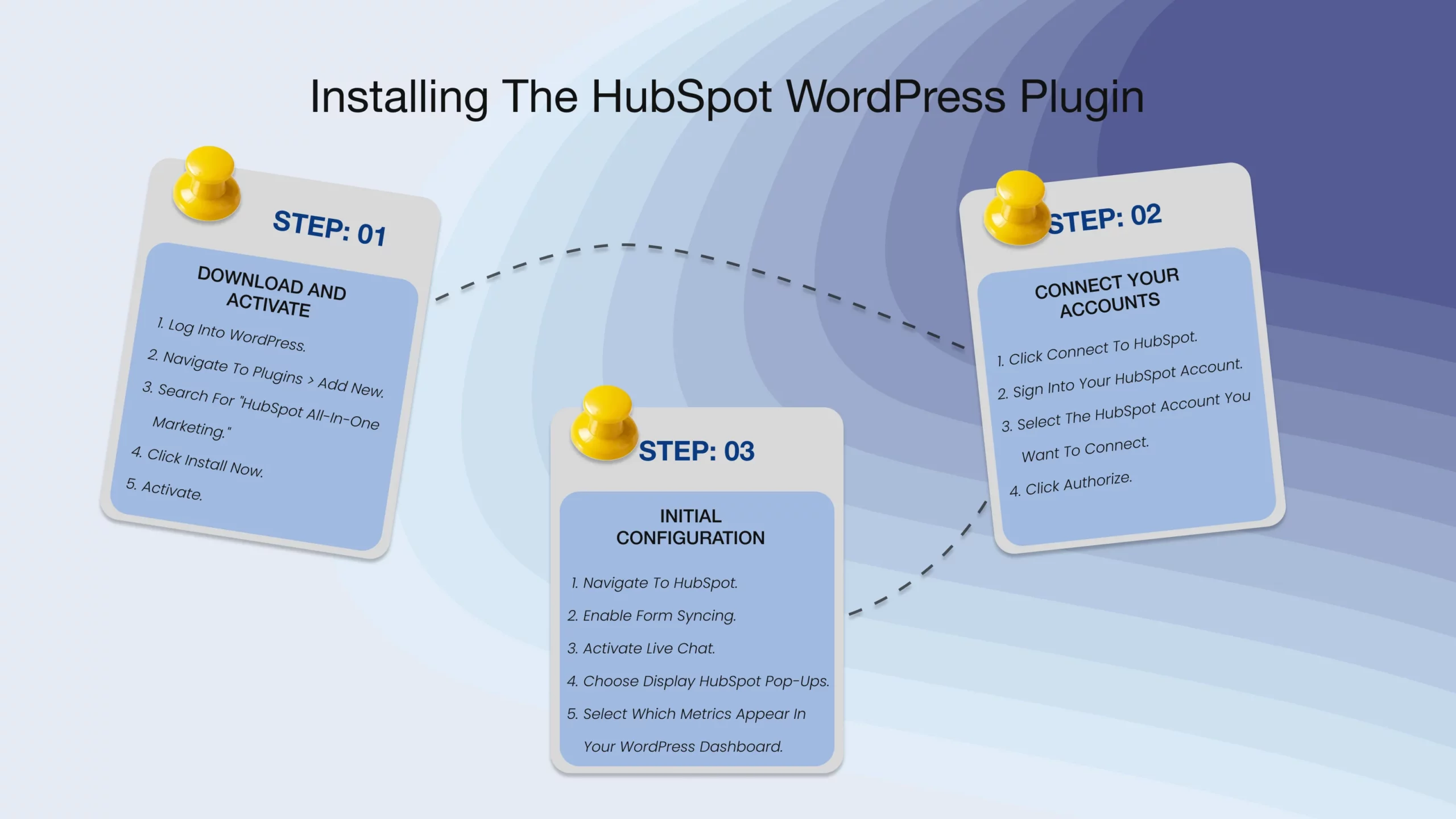
The official plugin takes 10 minutes to set up. Here’s the exact process.
Download and Activate
Log into WordPress. Navigate to Plugins > Add New. Search for “HubSpot All-In-One Marketing.”
Click Install Now, then Activate.
Connect Your Accounts
After activation, WordPress displays a HubSpot connection prompt. Click Connect to HubSpot.
Sign into your HubSpot account when redirected. Select the specific HubSpot account you want to connect if you manage multiple.
Click Authorize to establish the connection.
The plugin automatically installs HubSpot’s tracking code across every page. This happens instantly without manual code editing.
Initial Configuration
Navigate to HubSpot in your WordPress sidebar. You’ll see several configuration options.
Forms settings: Enable form syncing to capture leads in HubSpot. Turn this on immediately.
Live chat: Activate if you want real-time visitor engagement. You can enable this later if unsure.
Pop-ups: Choose whether to display HubSpot pop-ups on your site. Start disabled and add strategically.
Analytics: Select which metrics appear in your WordPress dashboard. Enable website traffic and form submissions at minimum.
Most businesses enable forms and tracking initially. Add live chat and pop-ups after establishing baseline processes.
Creating HubSpot Forms for WordPress
Forms capture leads directly into your CRM. The integration makes embedding seamless.
Building Forms in HubSpot
Open HubSpot and navigate to Marketing > Lead Capture > Forms. Click Create Form.
Choose your form type:
- Embedded forms: Blend into page content
- Pop-up forms: Appear based on triggers
- Standalone forms: Work as dedicated landing pages
Select Embedded Form for most use cases.
Form Design Best Practices
Keep fields minimal. Three to five fields convert 40% better than longer forms. Ask for name, email, and one qualifying question.
Progressive profiling reveals new fields for returning visitors. First visit requests basic info. Subsequent visits ask deeper questions.
Smart fields remember contact information. Known visitors skip redundant fields entirely.
Example: A consulting firm reduced form fields from eight to three. Conversion rates jumped from 12% to 27%.
Adding Forms to WordPress Pages
The HubSpot plugin provides two embedding methods.
Block Editor method:
- Edit your WordPress page
- Click the plus icon for new blocks
- Search “HubSpot Form”
- Select your desired form from the dropdown
- Publish the page
Shortcode method:
- Copy the form shortcode from HubSpot
- Paste it anywhere in your WordPress content
- The form renders automatically
Forms inherit your WordPress theme styling automatically. Customize colors and fonts in HubSpot’s form builder if needed.
What Happens After Submission
Every form submission triggers a chain reaction:
- Contact creates or updates in HubSpot CRM
- Form data populates contact properties
- Any configured workflows trigger immediately
- Lead notifications reach your sales team
- Tracking continues on all future site visits
An e-commerce brand uses this for abandoned browse recovery. Visitors who view products but don’t purchase receive automated follow-ups featuring those exact items.
Setting Up Visitor Tracking
HubSpot’s tracking code monitors every site interaction. This data powers your marketing decisions.
Understanding Tracking Capabilities
Page view tracking records every page visit with timestamps. See exactly how visitors navigate your content.
Traffic source tracking identifies where visitors originate. Organic search, social media, paid ads, or direct visits all appear clearly.
Session duration measures engagement levels. Long sessions on specific content indicate high interest.
Behavior triggers activate workflows based on actions. Five pricing page visits? Trigger a sales notification.
Configuring Privacy Settings
The plugin includes GDPR-compliant cookie consent features.
Navigate to HubSpot Settings > Tracking & Analytics > Cookie Consent. Enable the consent banner for EU visitors.
Visitors can opt out of tracking. Their preference saves automatically across sessions.
Excluding Internal Traffic
Your team’s site visits shouldn’t skew analytics. Filter them out easily.
Go to HubSpot Settings > Tracking & Analytics > Tracking Code. Add your office IP addresses to the exclusion list.
Internal browsing no longer affects metrics. Clean data leads to better insights.
Embedding Live Chat
Live chat connects your team with visitors in real-time. Setup takes minutes.
Activating Chat Features
Navigate to Conversations > Chatflows in HubSpot. Click Create Chatflow and select Website.
Customize your welcome message. Keep it friendly and helpful. “Hi! How can we help you today?” works better than generic greetings.
Set availability hours clearly. Displaying “online” when unavailable frustrates visitors.
Return to WordPress HubSpot Settings. Toggle Enable Live Chat to active.
The chat widget appears on all pages immediately. Exclude specific pages using the settings panel if needed.
Performance Considerations
Live chat adds minimal overhead. Most sites see no noticeable slowdown.
The widget loads external JavaScript though. Page builders obsessed with Core Web Vitals might delay chat loading until user interaction.
Several plugins handle lazy-loading for chat widgets specifically. This prevents render-blocking while maintaining functionality.
Chat Best Practices
Route intelligently. Pricing page chats go to sales. Support page chats reach customer service. Blog chats connect with marketing.
Create canned responses. Save time with pre-written answers to common questions. Personalize them during actual conversations.
Track chat metrics. Monitor response times and satisfaction scores. Improve based on data.
A SaaS company increased demo bookings 31% after adding contextual chat routing. Pricing page visitors received sales-focused greetings automatically.
WordPress vs HubSpot CMS Decision
Choosing between platforms confuses many businesses. Both have clear strengths.
When WordPress Wins
Budget constraints exist. WordPress hosting costs $10-50 monthly. HubSpot CMS starts at $360 per month.
Flexibility matters most. Access 60,000+ plugins and unlimited customization. WordPress adapts to any requirement.
Existing content is substantial. Migrating years of WordPress content to HubSpot requires significant resources.
SEO control is critical. Plugins like Yoast and Rank Math provide granular optimization impossible in HubSpot CMS.
When HubSpot CMS Makes Sense
Security is paramount. HubSpot manages all security automatically. WordPress requires constant plugin and core updates.
Native integration is priority. HubSpot CMS connects seamlessly with all HubSpot tools without plugins or workarounds.
Team collaboration matters. Built-in approval workflows and permissions streamline content creation.
Simplicity reduces stress. No plugin conflicts. No compatibility testing. No maintenance headaches.
The Hybrid Strategy
Many businesses use both platforms strategically.
WordPress hosts the main website and blog content. HubSpot CMS powers landing pages and conversion-focused experiences.
This combines WordPress flexibility with HubSpot’s marketing power.
Setup reverse proxy to host HubSpot pages on WordPress subfolders:
- yoursite.com runs on WordPress
- yoursite.com/landing-pages runs on HubSpot CMS
Visitors never notice the difference. You get best-of-both-worlds functionality.
Integrating WooCommerce with HubSpot
Online stores need e-commerce tracking. WooCommerce connects seamlessly with HubSpot.
Setting Up Dual Integration
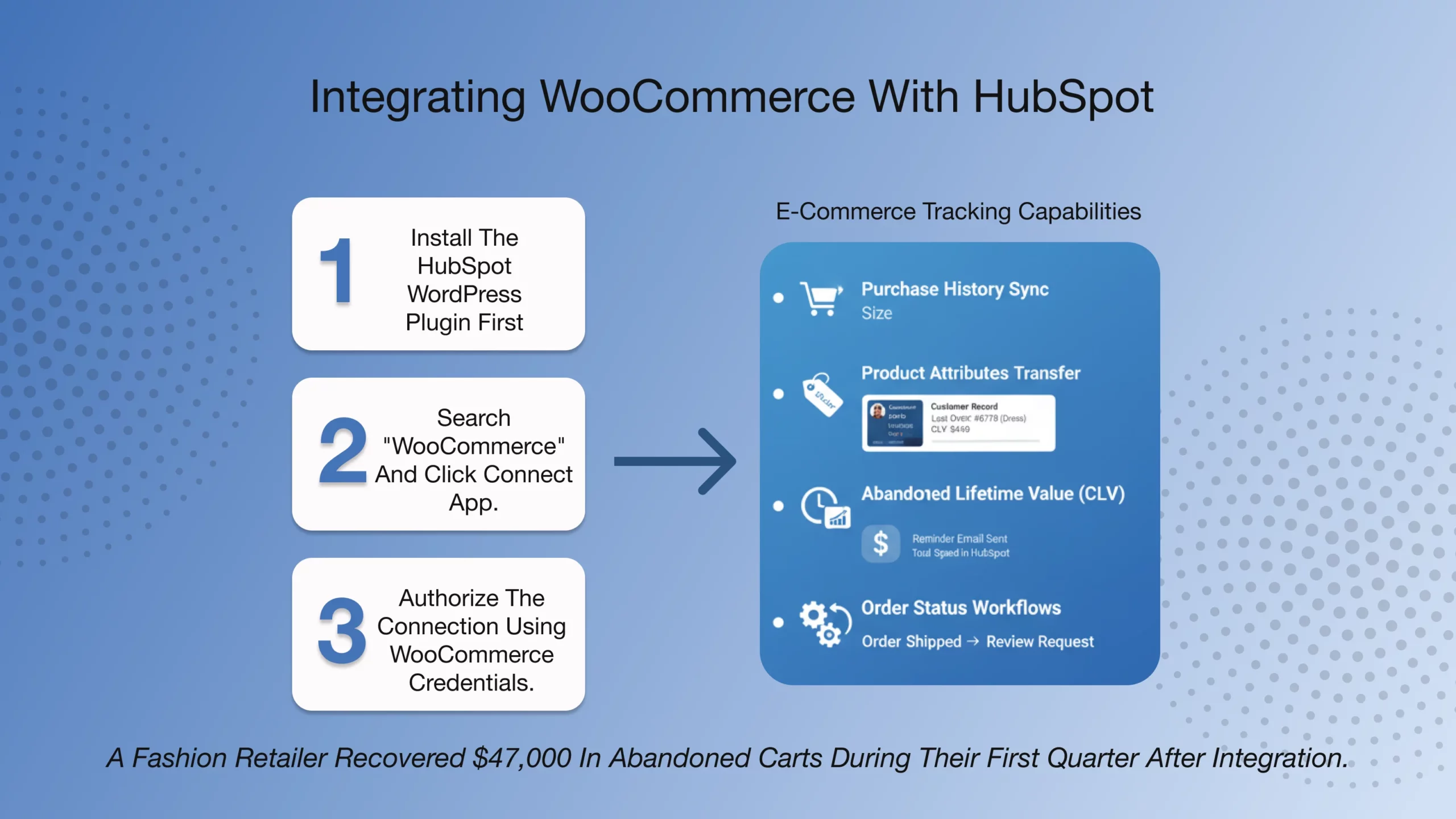
Install the HubSpot WordPress plugin first. This handles general tracking and forms.
Add the WooCommerce integration through HubSpot’s App Marketplace. Search “WooCommerce” and click Connect App.
Authorize the connection using your WooCommerce store admin credentials.
Both integrations work together without conflicts.
E-commerce Tracking Capabilities
Purchase history syncs automatically. Every order appears on customer contact records with product details and values.
Product attributes transfer. Size, color, category, and custom attributes all sync for detailed segmentation.
Abandoned cart recovery activates. HubSpot identifies incomplete checkouts and triggers reminder sequences.
Customer lifetime value calculates. See total spending per customer directly in HubSpot.
Order status changes trigger workflows. Shipped orders start review requests. Cancelled orders prompt win-back campaigns.
A fashion retailer recovered $47,000 in abandoned carts during their first quarter after integration. Automated reminder emails did all the heavy lifting.
Advanced E-commerce Automation
Tag customers by purchase behavior. First-time buyers get welcome sequences. Repeat customers receive loyalty rewards.
Segment by product category. Athletic shoe buyers see different content than casual wear shoppers.
Track product views without purchases. Follow up on browsed items with targeted promotions.
Email Marketing Through WordPress
HubSpot’s email tools work directly in WordPress after integration.
Creating Campaigns in WordPress
Navigate to HubSpot > Email in WordPress dashboard. Click Create Campaign.
Choose from HubSpot’s templates or build custom designs. The drag-and-drop editor functions identically to HubSpot’s native interface.
Add content blocks, images, and calls-to-action. Everything auto-saves continuously.
List Management and Segmentation
WordPress-captured leads populate HubSpot lists automatically. Create segments based on multiple criteria:
- Form submissions
- Page visits
- Download activity
- Purchase history
- Custom properties
Example segmentation: Everyone who downloaded your pricing guide AND visited pricing pages three times. These highly-qualified prospects warrant immediate sales outreach.
Campaign Performance Tracking
Track email metrics directly in WordPress. Opens, clicks, and conversions display in HubSpot dashboard widgets.
A/B test subject lines and content variations. HubSpot sends winning versions to remaining contacts automatically.
Troubleshooting Common Issues
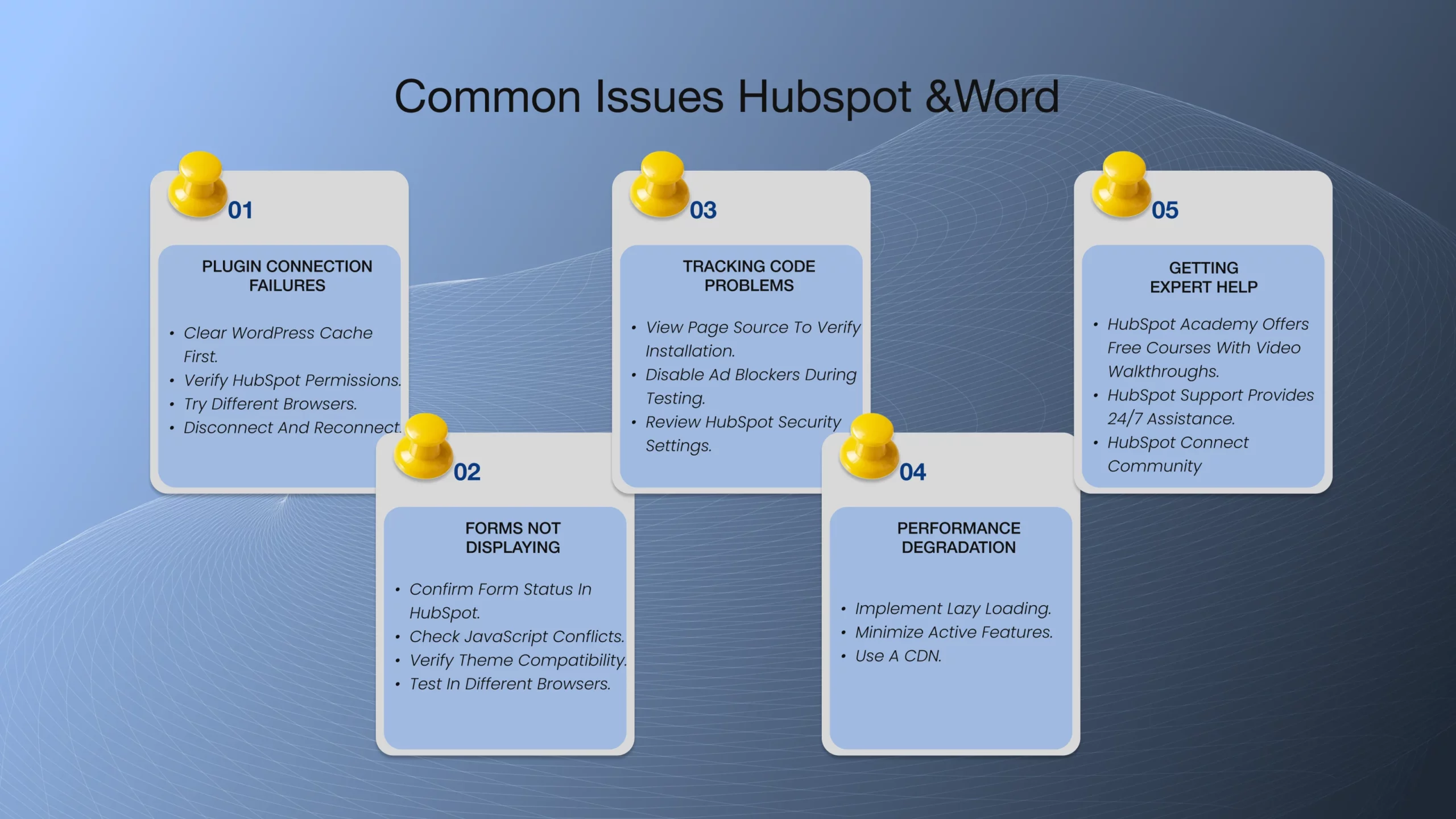
Even smooth integrations occasionally encounter problems. Here’s how to resolve them.
Plugin Connection Failures
Clear WordPress cache first. Caching plugins frequently interfere with API connections.
Verify HubSpot permissions. You must have Super Admin access to authorize connections.
Try different browsers. Sometimes browser extensions block authorization flows.
Disconnect and reconnect. The authorization token occasionally expires and needs refreshing.
Forms Not Displaying
Confirm form status in HubSpot. Deleted or unpublished forms won’t appear in WordPress.
Check JavaScript conflicts. Temporarily disable other plugins to identify conflicts.
Verify theme compatibility. Older themes sometimes break block editor functionality.
Test in different browsers. This isolates browser-specific rendering issues.
Tracking Code Problems
View page source to verify installation. Right-click any page, select “View Page Source,” and search for “hs-analytics.net.”
Disable ad blockers during testing. These prevent tracking scripts from loading.
Review HubSpot security settings. Some configurations block tracking on external domains.
Performance Degradation
Implement lazy loading. Delay non-critical scripts until after initial page render.
Minimize active features. Disable unused functionality like live chat if not needed.
Use a CDN. Content delivery networks accelerate script loading globally.
When You Don’t Want to Troubleshoot It Yourself
When you do not want to spend time on trial and error configuration and would rather have the integration done properly at the beginning of the game, a professional implementation can save time and data problems in the long run.
We Provide WordPress–HubSpot Integration Services
And this is what we do to growing businesses.
We assist with the integration of WordPress and HubSpot in such a manner that would allow the teams to generate leads, automate, and track revenue, rather than just install a few simple plugins.
What We Handle for You
WordPress-HubSpot integration.
Since the installation of a plug-in up to high-level configuration, validation of tracking, and QA.
Custom forms & CRM mapping
We create HubSpot forms, set map properties properly, and keep your CRM clean and usable when you grow.
Visitor tracking & behavioral automation
Right workflows are automatically activated by page views, pricing intent, downloads, and return visits.
WooCommerce + HubSpot integration
Total eCommerce monitoring, onsale recovery, customer classification, and autonomy of the lifecycle.
Performance & data accuracy optimization
We are able to keep the tracking rapid, dependable, and in line with privacy specifications.
When Our Help Makes the Biggest Difference
- You need automation beyond default plugin settings
- You’re scaling leads and want structured, reliable CRM data
- You don’t want misconfigurations affecting conversions
- You want strategy and execution—not just documentation
We have also launched WordPress-HubSpot integrations in SaaS, eCommerce, and professional service, enabling teams to improve lead response time, convertibility, and make follow-ups with a high level of confidence.
When you need an arrangement that can support growth, not solely a connection, expert implementation is the difference.
Ready to connect WordPress and HubSpot?
Install the plugin today and transform your lead capture process. The integration brings enterprise marketing automation to any WordPress site—your competition is likely already using it.

Saurabh Sharma
Sr. Software Engineer


Related Articles
Read expert takes on custom software development, digital trends, and real-world , growth strategies — straight from the minds at TechMarcos.



Frequently Asked Questions

Is the HubSpot WordPress plugin free?
Yes, completely free to install and use. You need a HubSpot account (free or paid), but the plugin itself costs nothing.
Do I need to manually add HubSpot tracking code to WordPress?
No. The plugin automatically installs tracking code on all pages during initial connection. No manual code editing required.
Does the HubSpot WordPress plugin slow down my site?
Minimal impact for most sites. Live chat features may affect load times slightly. Implement lazy loading if concerned about performance.
Can I host HubSpot content on WordPress subfolders?
Yes, using reverse proxy configuration. This lets you run HubSpot CMS pages on WordPress domains seamlessly.
Can I integrate WooCommerce and WordPress with HubSpot together?
Yes. Use both the WordPress plugin and WooCommerce integration simultaneously for complete e-commerce tracking and marketing automation.
How do I troubleshoot WordPress HubSpot plugin issues?
Check plugin compatibility, clear cache, review settings, and contact HubSpot support. Most issues resolve through simple configuration adjustments.
Can I use HubSpot email marketing from WordPress?
Yes. Create and send email campaigns directly from the WordPress dashboard after plugin installation.