The Ultimate HubSpot Integrations Guide (2026 Edition)

|
Getting your Trinity Audio player ready...
|
You have to make your marketing tools integrate with one another in the current digital ecosystem. HubSpot integrations will be the connection between your CRM, eCommerce, content management systems, and team collaboration tools to form a coordinated engine of growth in your business.
No matter what type of business you operate, whether it be a WooCommerce store, a content management team in WordPress, or organizing your team in Slack, this step-by-step guide will help you realize just how to use HubSpot to integrate with your other key tools to automate workflows, have real-time data integration, and achieve quantifiable outcomes.
Why HubSpot Integrations Matter
HubSpot is an engine by itself, yet the engine is ignited when it is integrated with your current technology stack. Integrations remove data silos, cut in on data entry and establish automated workflows that save hours each week and enhance accuracy and customer experience.
Key Benefits of HubSpot Integrations
- Automated Data Synchronization: Get rid of manual data entry and automatically synchronize customer data, orders and interactions in any of your platforms in real-time.
Once a customer completes a purchase on either your WooCommerce or Shopify store, the information will automatically be seen in HubSpot CRM. This is because your sales force will always have the latest customer information without the need to raise a finger.
- Enhanced Marketing Automation: Develop more complex workflows, which are triggered by customer behavior across multimedia channels.
Initiate personalized email programs with abandonment of shopping carts, run targeted email programs to customers who have bought certain products, or automatically feed leads depending upon the interactions that the customer had had with the site.
- Unified Customer View: View the entire customer journey, including first visit to the website, to the ultimate purchase in a single dashboard.
As opposed to using several platforms to comprehend the behavior of customers, HubSpot creates a single pane of all your integrated applications to provide you with a 360-degree view of every interaction of every contact with your brand.
- Improved Team Collaboration: Have your whole team in- sync with updates and with information being centralized.
Slack integrations imply that your sales team has access to hot leads in real time, whereas the links with Google Drive access to all current proposals and marketing materials without you having to scroll through emails.
- Better ROI Tracking: Attributing marketing investment to all channeled revenue.
In case your eCommerce platform is connected to HubSpot, you will be able to see which marketing campaigns, emails, or pieces of content actually lead to sales, and you will be able to base your marketing budget on the actual performance data.
Types of HubSpot Integrations
Knowing the various types of integrations aids in distinguishing what integrations will be most valuable to your business.
| Integration Type | Best For | Popular Platforms |
| eCommerce Integrations | Online stores, B2C & B2B commerce | Shopify, WooCommerce, Magento, BigCommerce |
| CMS Integrations | Content websites, blogs, marketing sites | WordPress, Drupal, Joomla, Webflow |
| Team Collaboration | Communication, file sharing, project management | Slack, Google Drive, Microsoft Teams, Asana |
| Sales & Support Tools | Sales enablement, customer support | Salesforce, Zendesk, Intercom, Zoom |
Getting Started with HubSpot Integrations
Strategically, it is significant to consider the process before getting into the details of particular integrations. By integrating tools that are already connected to you, you will be assured of a functional implementation plan and optimization of the best value.
Step-by-Step Integration Framework
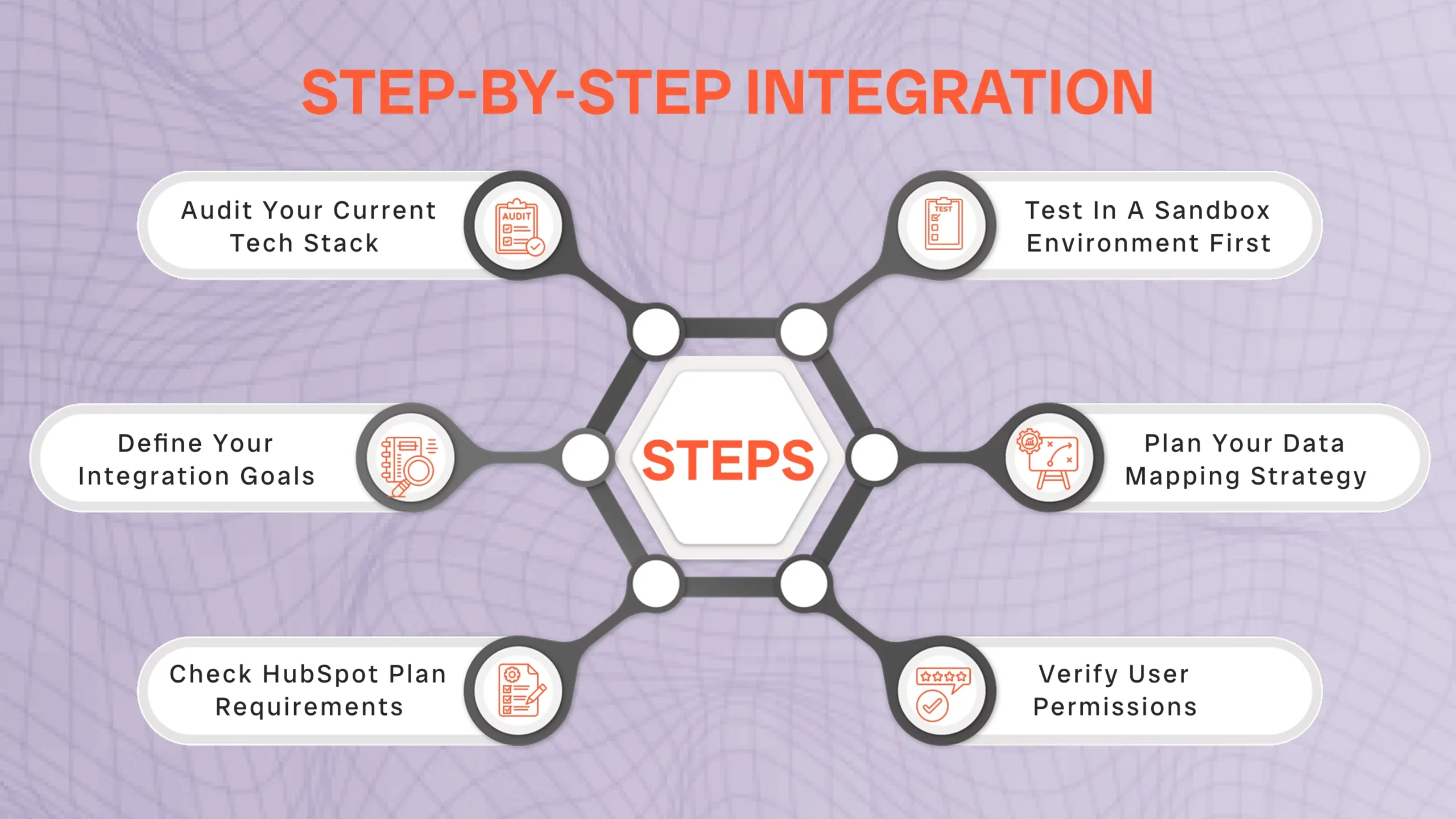
- Audit Your Current Tech Stack
Name all the tools that your team uses now. Determine the platforms that host your customer information, where your team has the highest time usage and which tools are essential to your daily work. This audit assists in prioritizing the integrations that will be providing the fastest wins.
- Define Your Integration Goals
What are the exact issues that you are attempting to resolve? The most frequent ones are to do away with redundant data entry, automate follow-up sequences, better lead tracking, or even to improve team communication. Specific targets assist you in quantifying achievement and focusing attributes at the time of establishment.
- Check HubSpot Plan Requirements
Certain integrations need particular levels of subscriptions to HubSpot. Basic automation and custom objects are only available on Professional or Enterprise plans, with basic integrations such as WordPress and some eCommerce systems available on free HubSpot accounts. Thoroughly review before making an integration commitment.
- Verify User Permissions
The vast majority of integrations would need Super Admin privileges in HubSpot and administrator access on the platform being connected. Make sure that you possess the required permissions before beginning the integration process so as to save on time wastage..
- Plan Your Data Mapping Strategy
Determine what data fields of your external platform will be reflected on what HubSpot properties. As an example, should the WooCommerce orders be transformed into HubSpot deals? Is it possible that order statuses be mapped to deal stages? When this mapping document is made prior to integration, it saves confusion and makes it consistent.
- Test in a Sandbox Environment First
Assuming that is possible, configure the integration locally in a test environment, and then push it into a production environment. This enables you to check data flows properly, automation triggers, and potential problems without impacting live customer data or operations.
eCommerce Integrations: Turning Browsers into Buyers
By enabling the integration of your online store with HubSpot, eCommerce integrations turn it into a revenue engine as your store is directly linked to your CRM and marketing automation system. The connection allows individual customer experiences, automated cart recovery, and data-based marketing campaigns.
WooCommerce + HubSpot Integration
WooCommerce is the most popular eCommerce platform among users of WordPress with more than 28 % of online stores running on the platform. HubSpotWooCommerce is a collaboration of the flexibility of the WordPress and the capabilities of the HubSpot to perform marketing automation.
What Gets Synced
- Contact information Customer contact information is automatically created or updated in HubSpot as contact records.
- HubSpot deals are synchronized with order data, including order totals, purchased products, and time stamps.
- Product listing is synchronized with HubSpot product library to have the correct deal lines.
- Status change causes workflow behavior and automation of deal stages.
- Data of abandoned carts could be used to recover potential customers through recovery campaigns.
Real-World Use Cases
Scenario 1: Abandoned Cart Recovery
In case a customer adds products to his/her cart and fails to make a purchase, HubSpot will automatically add him/her to a recovery workflow. A series of targeted e-mails are sent to them: they are reminded in the first instance after 1 hour, then offered with a discount code after 24 hours, and finally, after 3 days, a last-chance message is sent. It has been demonstrated that this automated process can salvage 15-20% of the carts that are left unpurchased.
Scenario 2: Post-Purchase Nurturing
Once a customer makes their initial purchase, HubSpot launches a welcome series that contains confirmation of order and updates of shipping, tips on product care, and finally a request to leave a review. Depending on what is bought, customers are given customized suggestions on what to have as a complement, which raise the price of the average order by 25-30%.
Shopify + HubSpot Integration
Shopify is among the easiest to integrate with HubSpot on the Data Sync app, which makes it one of the most seamless eCommerce integrations. It is a native relationship that offers more powerful features and shorter sync durations than third-party systems.
Native Integration Advantages
- Real-time: Data synchronization when you make a purchase with minimum lag before record update in HubSpot.
- Pre-configured eCommerce dashboard templates with revenue, conversion rates and customer lifetime value.
- Dynamic purchase history segmentation, which enables you to design very specific campaigns.
- Automatic tracking of customer lifetime value and purchase frequency for better customer insights
- Direct integration with HubSpot attribution reporting to understand what marketing actions sales are based upon.
CMS Integrations: Powering Your Content Engine
Connections to CMSs fill the gap between your website and your marketing automation, allowing you to monitor visitor activity, receive leads via forms, and provide real-time, personalized content experiences at scale.
WordPress + HubSpot: The Perfect Partnership
About 43 percent of all websites in the whole world are powered by WordPress, and the WordPress-HubSpot integration is one of the most popular. The HubSpot WordPress official plug-in is free and offers the necessary marketing features without complicated configuration.
Key Features Unlocked
- The automatic tracking code installation removes manual coding and provides precision in tracking of visitors.
- Native form builder integration provides you with the opportunity to build and integrate HubSpot forms onto the posts and pages of WordPress.
- Live chat widget allows real-time interaction with the visitor without extra software.
- Marketing email list building through popup forms and slide-in CTAs
- integration of analytics reveals the posts and pages on the blogs that lead to the highest number of conversions.
Implementation Best Practices
Install the HubSpot plugin as a WordPress plugin and integrate it with your HubSpot account data. The tracking code is automatically installed on every page by the plugin, although you may need to check the tracking status of HubSpot tracking code in your website settings.
In the case of sites that already have tracking codes or tag management systems, consult with your web developer to ensure they are not conflicting with each other or have duplicate tracking which may bias your analytics data.
This is one of the reasons why you should consider using HubSpot forms over WordPress contact forms so that every form submission is automatically logged in your CRM and could be used to initiate marketing automation workflows.
Team Collaboration Integrations: Working Smarter Together
By connecting HubSpot to the communication and productivity solutions that your team uses daily, integrated team collaboration keeps your whole company aligned, informed, and productive.
Slack + HubSpot: Real-Time Team Alignment
The Slack integration will take HubSpot notifications and actions and place them directly into the communication channel of your team, without the necessity to constantly switch between applications and making sure that no lead or opportunity is kept unnoticed.
Powerful Collaboration Features
-
Instant deal notifications can warn your team that deals have passed through pipeline stages or have reached important milestones.
-
The hot leads alert system is activated when a high-value buyers make important moves on your site and it will send an instant notification to the sales reps.
-
Quickly create and update records in Slack with slash commands and shortcuts
-
Live Chat conversation notifications maintain added customer service attention even when employees are out of HubSpot.
-
Task assignment and reminder features make projects continue to move without bombarding the email with emails.
Google Drive Integration: Centralized Document Management
Although HubSpot does not provide a native integration with Google Drive, you can use the two systems together through automation tools, such as Zapier, Make, or Integration Glue, to build strong document workflow.
Automated Document Workflows
- Save HubSpot email attachments to designated Google Drive folders by contact or deal automatically.
- Automatically create Google drive folders every time a deal or project is created in HubSpot.
- Back-up contact files and contracts into Google Drive to be accessed by the team.
- Proposals or contracts can be created in Google Docs using HubSpot information and appended to deals automatically.
Common Integration Challenges and Solutions
Integration difficulties may appear even when planned. Knowledge of most common problems and their resolutions will enable you to troubleshoot and keep the operations running smoothly.
Data Sync Issues
Problem: Data is not being synchronized across systems, or it is taking too long to sync data.
Solution: First, make sure that you have an integration connection checked in HubSpot settings. A lot of sync problems are attributed to the out-of-date authentication tokens or the accounts that are not connected. Reconnect the integration and check permissions are not turned off. In the case of sync delays, check the plan limits of HubSpot and make sure that you do not exceed the API rate limits. Professional plans and Enterprise plans have an increased limit, which might be required by stores of a high volume.
Duplicate Records
Problem: Within your HubSpot database the same customer is being presented in various email addresses or slight variations in names.
Solution: Have HubSpot do the automatic deduplication configuration, which consolidates contacts that match in email address. To support more complicated cases, it is possible to use the Operations Hub of HubSpot and build specific deduplication rules according to various standards, such as similarity in names, phone number, and company membership. The database cleanup on regular basis with the duplicate management tools that HubSpot offers avoids the problems compounding over time.
Field Mapping Confusion
Problem: Data from your integrated platform does not fit into HubSpot properties, resulting in partial or inaccurate records.
Solution: Respond to and set up your field mapping preferences in the integration setup. Instead of making your data fit into the standard properties (which do not always fit), use HubSpot to create your own custom properties based on the actual data structure shared with your external platform. Record your field mapping choices in a shared resource to make them visible to the whole team to know where data resides and how it traverses systems.
Workflow Trigger Failures
Problem: Automated workflows do not automatically run on events that are integrated within platforms.
Solution: Verify the workflow enrollment criteria to verify that they reflect the real property updates of your integration. Different properties can often be filled with integration-based data as opposed to manual entry and, therefore, workflows may require modification. View the workflow history of HubSpot to understand why the contacts did not enroll, and test triggers by using small lists of contacts before rolling them out. It is worth adding more enrollment triggers to include edge cases.
Integration Best Practices for Long-Term Success
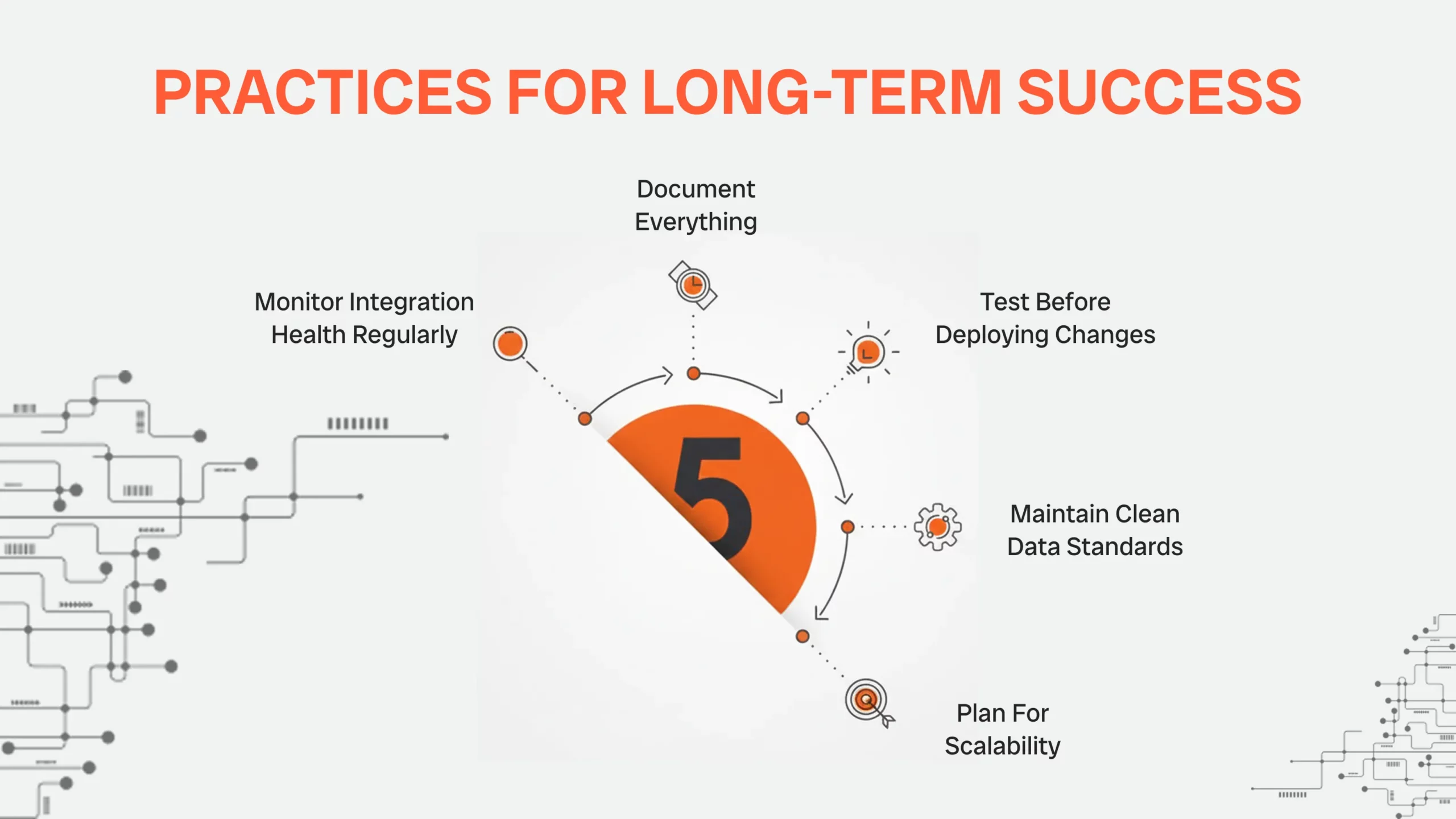
These are the best practices that will help you realize that your integrations keep on paying off as your business expands and evolves.
1. Monitor Integration Health Regularly
Set up weekly or monthly integration checks, sync statistics, and error logs. Configure HubSpot to generate alerts in case of connection faults or sync errors in real-time as opposed to finding out the issues weeks down the line when the discrepancy in the data becomes evident.
2. Document Everything
Develop a detailed documentation of your integration setup, field mapping, workflow logic, and troubleshooting processes. This documentation is invaluable when you are training new team members, troubleshooting their problems, or updating your integration settings several months or years later.
3. Test Before Deploying Changes
The important aspect is that integration changes should not be made immediately in a production without prior testing. Confirm that configuration changes work by using test accounts, sample data or sandbox environments without inducing live customer data changes or unwanted automatic communication.
4. Maintain Clean Data Standards
Define and institute data quality guidelines on all combined platforms. Apply consistent naming terms, mandatory fields, and validations to promote the movement of data between systems. Defective information in a single platform is bound to propagate to other related systems increasing the cleanup process.
5. Plan for Scalability
Plan your integrations with expansion at heart. Think about how your integration architecture will change with additional transaction volume, more team members or new business lines. Plan Review HubSpot limits and upgrade prior to reaching constraints instead of addressing disruption at the time of business need.
Advanced Integration Strategies
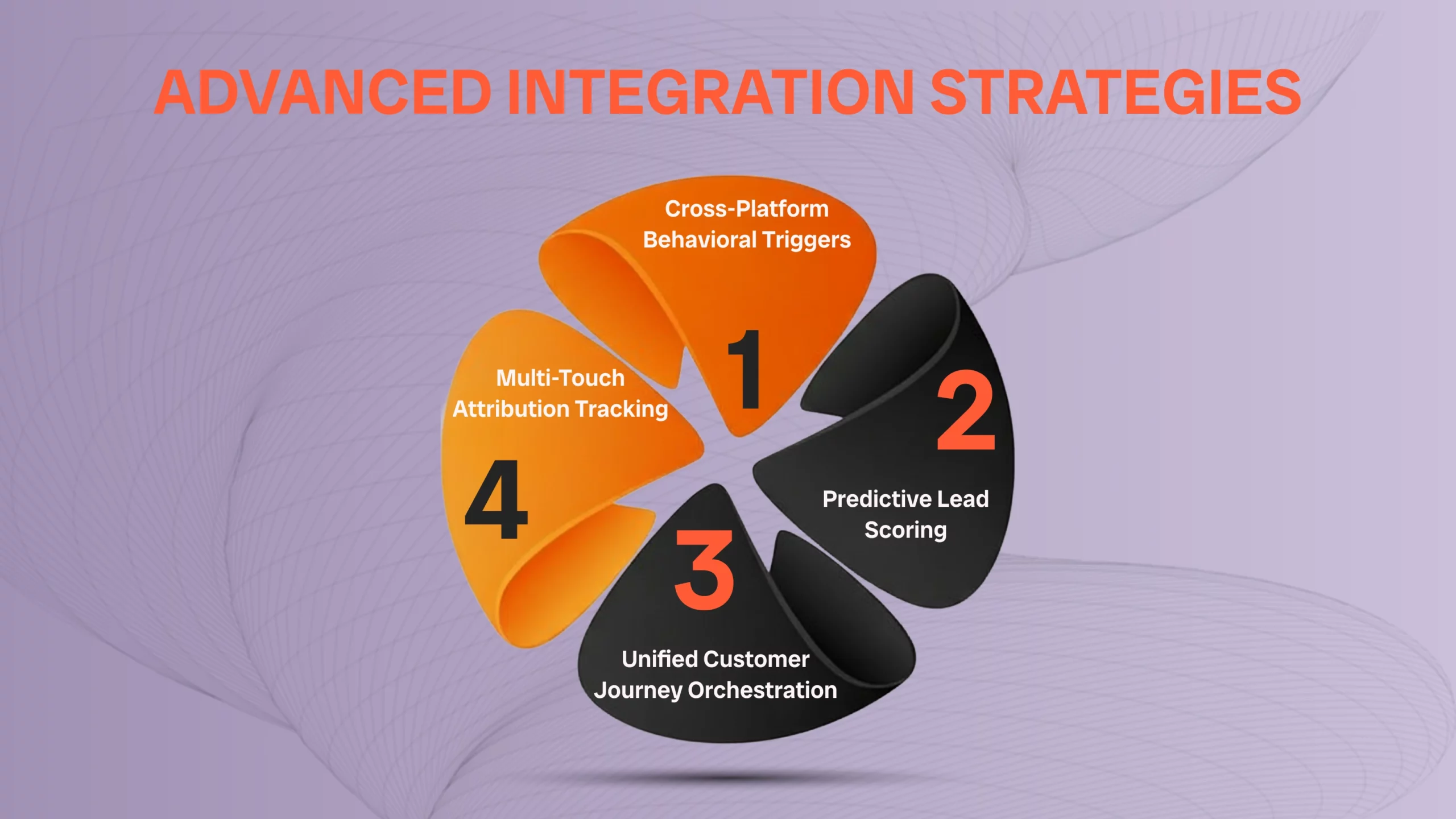
Once your basic integrations are running smoothly, these advanced strategies can multiply their value and unlock sophisticated automation capabilities.
Multi-Touch Attribution Tracking
When you integrate your eCommerce platform, CMS, and advertising platforms with HubSpot, you will be able to use advanced attribution models that will demonstrate what marketing touchpoints are used to drive conversions. Such a holistic perspective is efficient in optimization of marketing expenditure by finding out which channels and content are performing actually and not traffic or engagement metrics.
Cross-Platform Behavioral Triggers
create workflow in response to customer behavior on many integrated platforms. As an example, when a customer who has downloaded a whitepaper in WordPress visits your site again, visits price pages, and adds products to their Shopify carts, but fails to checkout, trigger a sales notification in Slack. These advanced triggers get on the high-intent prospects in real-time.
Predictive Lead Scoring
Use all combined platforms data to develop better lead scoring models. Integrate web activity through WordPress, interaction through email marketing, transactional data through your eCommerce platform, and demographic information to determine trends that signal a desire to buy. HubSpot Operations Hub has the ability of automating the score updates using cross-platform signals.
Unified Customer Journey Orchestration
Create cross platform customer experience which flows across platforms. It is possible that a prospect finds your brand by reading a post on WordPress, gets nurtured by HubSpot, chats with your team on the Slack-connected live chat and makes their purchase on your Shopify. To organize this journey, it is necessary to know how the data are shared across platforms and to develop workflows that carry the customers through the different stages of the journey.
Frequently Asked Questions
How much does it cost to integrate HubSpot with other platforms?
The majority of native HubSpot integrations can be installed and used at no cost, but you might have to pay a paid HubSpot plan to use the more advanced features. Integrating with third-try platforms via apps such as Zapier normally range between $19.99 and 49.99 a month as per the quantity of automated tasks. Depending on the integrations developed using the HubSpot API, they may take the time and costs of a developer.
Can I integrate HubSpot with multiple eCommerce platforms simultaneously?
Yes, HubSpot can be connected to several eCommerce platforms at the same time. This is beneficial in cases of businesses which sell in more than one channel or where they are shifting between platforms. Nonetheless, you will have to pay close attention to the process of data deduplication and make sure that your workflows consider the orders received by various sources.
What happens to my data if I disconnect an integration?
In case you unintegrated, data in HubSpot is not lost, but none of the new data will be added by the partner. The historical data such as synched contacts, deals, and activities remain in your HubSpot account unless you delete them manually. In order to prevent loss of data, it is important to export valuable information prior to disconnecting any integration.
How long does it take to set up a HubSpot integration?
Basic integrations such as WordPress or Slack usually take 15-30 minutes to integrate and configure. eCommerce integrations need field mapping, workflow configuration, and testing which normally consumes 2-4 hours. Depending on necessities and availability of developers, complex custom integrations can be completed in a few days or weeks.
Do integrations work with HubSpot’s free plan?
HubSpot has a free plan that works with many basic integrations, such as WordPress, simple eCommerce connections, collaboration tools, and others. More sophisticated services such as custom field mapping, complex workflow automation and scalable data syncing with large volumes are however made available as paid subscriptions of the Marketing, Sales or Operations Hub.
Can I build custom integrations with HubSpot?
Yes, HubSpot offers a full API that can be used to create custom integrations. You may make private applications and use them internally or public applications and use them on the HubSpot marketplace. Custom integrations can be used to connect to proprietary systems, legacy software or niche platforms that lack pre-existing integrations.
How do I troubleshoot integration sync errors?
Begin by going to HubSpot settings to verify the connection status of the integration. Look at error logs of individual failure messages, which frequently are permission failures, field mapping errors or API rate limits. Reintegrate, check user permissions and make sure that all the necessary fields are correctly mapped. In case of any errors, reach out to HubSpot support with the exact messages of the errors.
What’s the difference between native and third-party integrations?
Native integrations are created and managed by HubSpot or the platform partner, and they are more functional, can be synced faster, and supported more. Third-party integrations are integrations developed by other businesses such as Zapier and offer connections to platforms that do not have native integrations but can have fewer features, slower syncing, and become unavailable when the third-party service fails.
Next Steps: Building Your Connected Growth Engine
HubSpot integrations help unify tools that are disconnected into a single engine of growth which not only works harder but also smarter to your business. Integrating your eCommerce site, CMS and team collaboration software, you dismantle data silos, automate routine processes and generate tailored customer experiences to earn actual outcomes.
Integration success is the key, which should be planned properly, implemented carefully, and optimized. Begin with the integrations that will provide the most rapid wins to your business and build your connected ecosystem as you master each platform connection.
It is important to remember that integrations are not solutions that can be configured and left alone. Monitoring, testing and refining on a regular basis will make sure that the systems which are connected are still providing value to your business as your business develops, your team expands and your customers expectations also get higher.
Ready For HubSpot Integration?
Whether you’re just getting started with HubSpot integrations or looking to optimize your existing connections, professional guidance can accelerate your success and help you avoid costly mistakes. Our agency specializes in HubSpot integrations across eCommerce, CMS, and team collaboration platforms. We help businesses like yours:
- Design integration strategies aligned with your business goals and growth plans
- Implement and configure integrations quickly and correctly the first time
- Build custom workflows and automation that maximize your integration investment
- Troubleshoot and optimize existing integrations that aren’t performing as expected
- Provide ongoing support and optimization as your needs evolve
Contact us today for a free HubSpot integration consultation Let’s build your connected growth engine together.