
HubSpot Advanced Automation & Custom Apps
|
Getting your Trinity Audio player ready...
|
Most HubSpot users only scratch the surface. They send emails. They track leads. However, the real power sits in advanced workflows and custom apps. And sadly, most businesses never touch them.
I’ve built automation systems for over 40 companies using HubSpot. The difference between okay results and great ROI? It all comes down to advanced automation done right.
So, this guide breaks everything down simply. No fluff. No confusion.
Who Should Read This?
This guide is perfect if you:
- Already use HubSpot but want more from it
- Spend too much time on repetitive manual ta sks
- Need workflows that actually think and branch
- Want to build something custom for your business
Skip this if you:
- Haven’t set up basic HubSpot yet
- Don’t use any HubSpot paid plans
- Are looking for a simple beginner overview
What You’ll Learn Here
- How HubSpot workflows actually work behind the scenes
- How to build advanced, multi-step automations
- What custom objects are and when you need them
- How to create private apps using the HubSpot API
- Real examples from real businesses
- Common mistakes that waste time and money
Why Advanced Automation Matters Now
HubSpot’s basic automation works great for simple tasks. Moreover, most teams stop there. That’s a huge missed opportunity.
Think about it this way. Your sales team manually follows up with leads every single day. At the same time, those same leads sit untouched for hours. That delay costs you real money.
So, advanced workflows fix this problem fast. They run 24/7 without anyone doing a thing. Furthermore, they make smarter choices based on data. Not guesswork.
Here’s a real example. A SaaS company I worked with saved 120 hours per month after switching to advanced workflows. Their lead response time dropped from 8 hours to under 3 minutes. As a result, their closed deals went up by 38% in one quarter.
Understanding HubSpot Workflows: The Basics First
Before diving deep, let’s make sure the base is solid. Workflows are HubSpot’s main automation tool. So, they handle everything from emails to task creation.
What Are Workflows?
A workflow watches for something to happen. Then it takes action on its own. That’s the simple version.
For example, someone fills out a form. The workflow sees that trigger. It then sends a welcome email, creates a task for your sales team, and tags the contact. All of this happens in just a few seconds.
Workflows vs. Sequences: Know the Difference
This trips up a lot of teams. However, the gap between them is clear.
Workflows handle one-to-many automation. They run campaigns, nurture leads, and manage data across your whole CRM.
Sequences work one-to-one. A sales rep sends personal emails to one prospect. The sequence stops when that person replies.
Both tools serve different jobs. Still, workflows offer far more power for automation at scale.
How Many Workflows Can You Create?
Your plan sets the limit. Here’s a quick breakdown:
| Plan | Workflow Limit |
| Free | 5 workflows |
| Starter | 25 workflows |
| Professional | Unlimited |
| Enterprise | Unlimited |
Professional and above unlock the real power. Also, Enterprise adds custom code actions for deeper logic.
Building Advanced HubSpot Workflows
Now we get into the fun part. Advanced workflows go beyond simple send-and-tag actions. So, they branch, decide, and respond in smart ways.
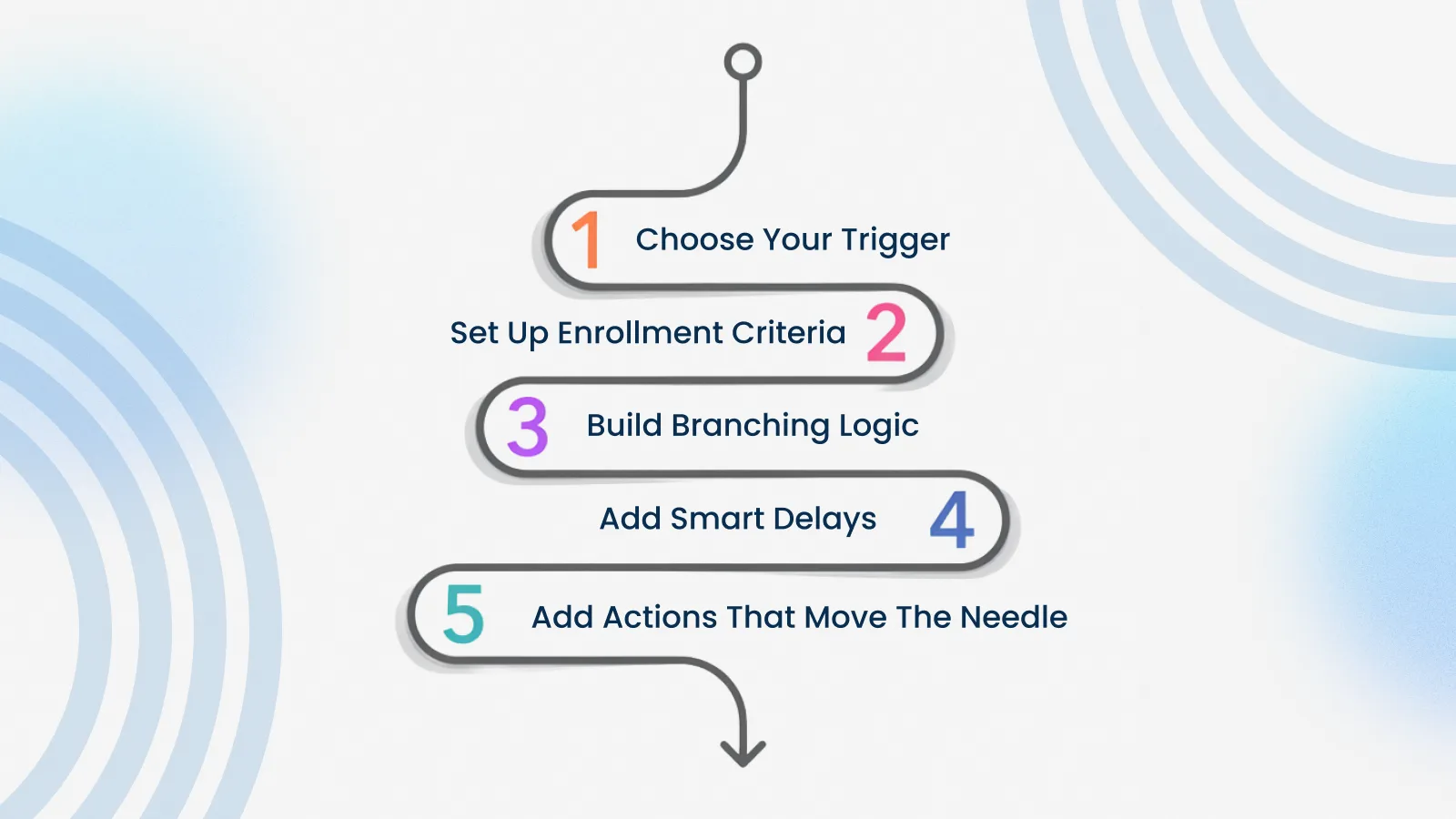
Step 1: Choose Your Trigger
Every workflow starts with a trigger. This is the event that kicks things off. Some good advanced triggers include:
- Form sends on key pages
- Deal stage changes in your pipeline
- Property value updates on contact records
- Page visits or site actions
- Webhook events from outside apps
Pick triggers based on your real work process. Also, custom events let you start workflows from outside HubSpot.
Step 2: Set Up Enrollment Criteria
Triggers tell the workflow when to start. However, enrollment criteria tell it which records qualify.
Go to Automation > Workflows in HubSpot. Click Create Workflow. Select your trigger type first.
Then set your rules. For instance, you might want the workflow to only grab contacts who visited your pricing page AND work at a company with 50+ people. This kind of filter keeps your automation sharp and on point.
Step 3: Build Branching Logic
This is where advanced workflows really shine. Branches create different paths for different people.
Here’s how it works in real life. Someone downloads your ebook. The workflow then checks their job title. If they’re a decision maker, it routes them to sales right away. Otherwise, it starts a nurture email series instead.
You can also stack many branches. Segment by country first. Then branch by company size. Finally, filter by industry. Each path sends the right content on its own.
Step 4: Add Smart Delays
Timing plays a big role in automation. Smart delays space out your actions well.
Use “Delay until a day or time” for event-based timing. Send a webinar reminder exactly 24 hours before the event. Also, follow up on a free trial on day 7.
On the other hand, use “Wait for” delays to space emails out. Two days between emails feels real. Yet, sending three emails in one hour feels like spam.
Step 5: Add Actions That Move the Needle
Actions are what your workflow does next. Beyond basic emails, try these strong options:
Create and assign tasks to your sales team based on lead score. High-value leads get fast follow-up. Lower-value leads go into nurture sequences instead.
Update contact fields on their own. When someone hits a set level of use, change their lifecycle stage. This keeps your CRM clean without extra work.
Send alerts to Slack or email. Your sales manager knows right away when a big lead acts on your site.
Enroll linked records into other workflows. One contact action can start automations on their company or deal at the same time.
Real-World Workflow Examples
Theory is great. But seeing real examples makes things click fast.
Example 1: Lead Scoring & Auto-Routing
A B2B software company wanted to stop sorting leads by hand. So, they built this workflow:
- Contact sends a demo request form
- The workflow checks the HubSpot lead score right away
- Scores above 80 go straight to the sales team
- Sales gets a Slack alert in seconds
- Meanwhile, scores below 80 enter a 5-email nurture series
- After the series ends, the workflow scores the contact again
The result? Their sales team only dealt with the best leads. As a result, their close rate jumped 52% in two months.
Example 2: Event-Based Reminder Sequence
A marketing agency runs webinars each month. Their workflow does all the work:
- Someone signs up, and the workflow starts
- A thank-you email goes out right away
- Then a reminder sends 48 hours before the event
- Another reminder fires just 2 hours before
- After the event, a follow-up email asks for feedback
- People who didn’t attend get a recording link instead
This saved the team 15 hours of manual work every single month.
Example 3: Customer Onboarding Automation
Once a deal closes, the onboarding process begins on its own:
- Deal moves to “Closed Won” stage
- The workflow creates an onboarding task for the success team
- A welcome email goes to the new customer right away
- Follow-up emails drip out over the first 30 days
- At day 14, the workflow checks how engaged they are
- Low use triggers a personal check-in from the account manager
This process runs fully on its own. Furthermore, it catches at-risk customers before they leave.
Triggering Workflows from External Apps
Sometimes your trigger lives outside HubSpot. No problem at all — external triggers work great.
Using Webhooks
Webhooks send live data from one app to another. So, when something happens in your other system, it pings HubSpot right away.
For example, a new customer signs up in your app. Your app sends a webhook to HubSpot. Then, the workflow catches that event and starts onboarding on its own.
Using the HubSpot API Directly
Developers can start workflows through code. This gives you full control over when things kick off.
Any coding language works here — JavaScript, Python, PHP, or others. The key point is being able to make HTTP requests to HubSpot’s API.
Using Integration Platforms
Not a developer? No worries at all. Tools like Zapier and Make (formerly Integromat) bridge the gap with ease.
Connect your apps in a visual way. Set up triggers and actions without writing code. However, these platforms do add a monthly cost to keep in mind.
What Are HubSpot Custom Objects?
Standard HubSpot tracks Contacts, Companies, Deals, and Tickets. However, not every business fits that shape well.
So, custom objects solve this problem. They let you build brand new record types just for your business.
How Custom Objects Work
Think of a custom object as a new table inside HubSpot. You choose what it tracks, what fields it has, and how it links to other records.
A SaaS company might build a “Subscriptions” object. A real estate firm could create a “Properties” object. An event company might track “Events” as their custom type.
Each custom object comes with:
- Its own fields and data points
- Links to contacts, companies, and deals
- Pipelines for tracking stages
- Workflows and automations
- Reports and charts
When Do You Actually Need Custom Objects?
Not every case needs them. But certain signs tell you it’s time to act:
Your contact records are too full. Too many fields slow down your sales team. So, custom objects move the right data into its own space.
You track many items per customer. One company might have five active plans. Storing all five on one deal gets messy. A “Subscriptions” object handles this well.
Your reports need unique data. Standard objects limit what you can show. Custom objects open up new insights just for your field.
Real Custom Object Examples
| Industry | Custom Object | What It Tracks |
| SaaS | Subscriptions | Plans, renewals, usage |
| Real Estate | Properties | Listings, showings, prices |
| E-commerce | Orders | Each order’s details |
| Law Firm | Cases | Legal cases per client |
| Events | Registrations | Attendee info |
Important: Custom Objects Need Enterprise
This feature only works on HubSpot Enterprise plans. Also, you need Super Admin rights to set them up. Keep this in mind when you plan your HubSpot path.
Building Custom HubSpot Apps
Ready to build something fully custom? HubSpot’s tools for builders make this easy for any skilled coder.
What Is a Custom App?
A custom app adds new power to HubSpot. It links your unique systems to HubSpot in a smooth way.
Think of it as adding a special tool right inside your CRM. Your team uses HubSpot as they always do. However, your custom app adds skills nobody else has.
Private Apps vs. Public Apps
Private apps serve only your company. They link your inner systems to HubSpot in a safe way. No need to list them anywhere.
Public apps can be shared or sold to others. They show up in HubSpot’s App Store. Other firms can install and use them too.
Most companies start with private apps. They’re faster to build and easier to keep up.
Authentication: How Apps Connect Safely
HubSpot uses two ways to verify apps right now:
OAuth 2.0 works best for apps that link to many HubSpot accounts. It swaps short codes for safe access keys. This keeps all data secure at all times.
Private App Access Tokens are great for internal links. They give direct, safe access to one HubSpot portal. Setup takes just a few minutes.
Note: HubSpot stopped the old API key method back in 2022. So, any link still using API keys needs to be updated right away.
API Rate Limits: What You Need to Know
Your plan level sets how many API calls you can make:
| Plan | Calls per 10 Seconds | Daily Limit |
| Free/Starter | 100 | 250,000 |
| Professional | 190 | 650,000 |
| Enterprise | 190 | 1,000,000 |
Plan your app build around these limits. Also, batch calls let you handle up to 1,000 records at once, which helps a lot.
Coding Languages That Work
Almost any language works with HubSpot’s API. The only rule is simple — your language must make HTTP calls. Popular picks include:
- JavaScript / Node.js — great for fast, light apps
- Python — perfect for data-heavy links
- PHP — works well if your server already uses PHP
Just pick what your team knows best. The API does not care which language calls it.
Step-by-Step: Building Your First Private App
Let’s walk through the real steps. This assumes you know the basics of coding.
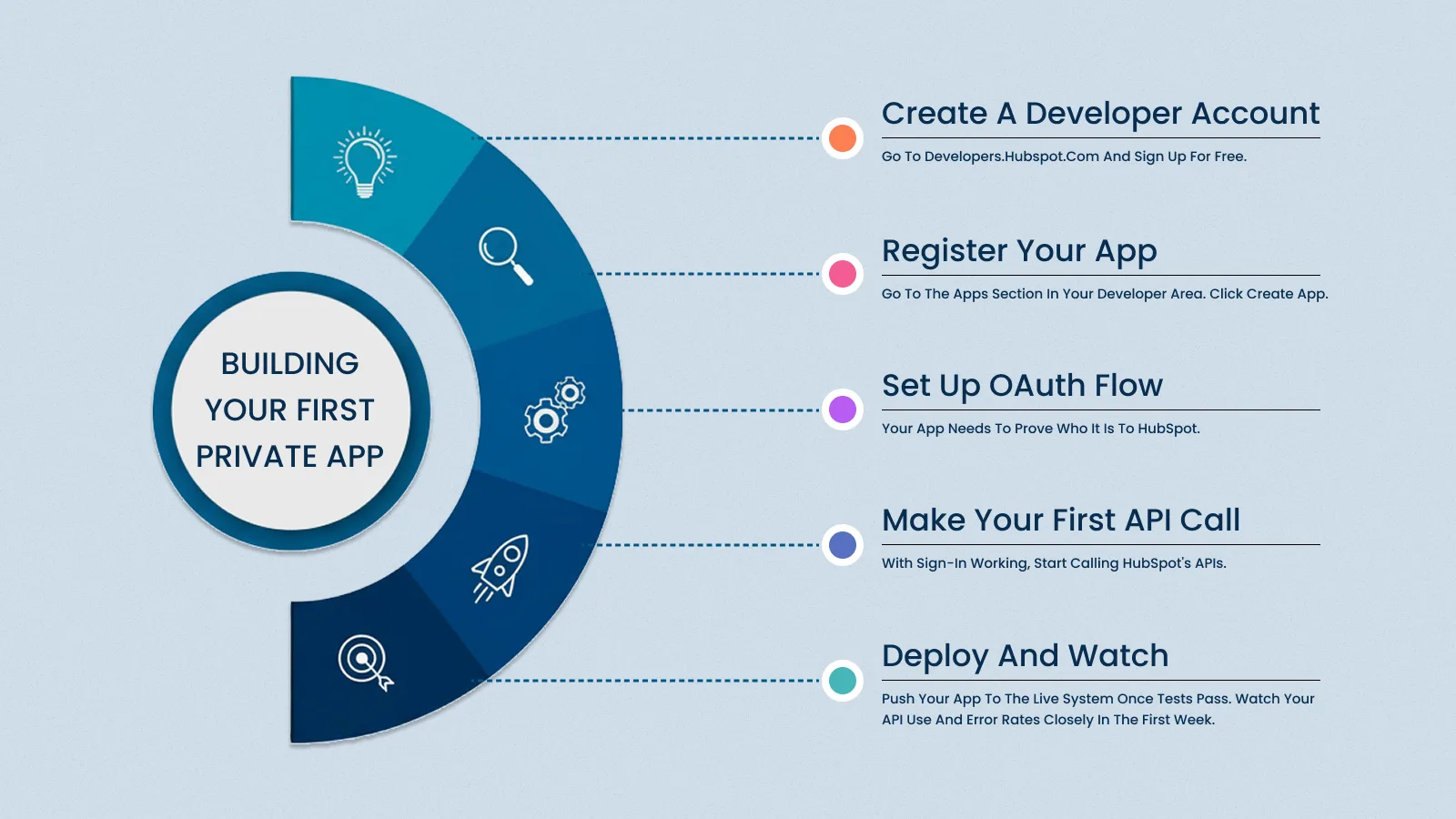
Step 1: Create a Developer Account
Go to developers.hubspot.com and sign up for free. Your account comes with test data built in. So, there’s no risk to real customer info at all.
Step 2: Register Your App
Go to the Apps section in your developer area. Click Create App. Set up these key points:
- Scopes: Only ask for the rights you really need
- Redirect URI: Set this for your OAuth callback
- App Details: Say clearly what your link does
Pro tip: Use two separate apps — one for testing, one for live use. This way, changes during testing won’t break your live system.
Step 3: Set Up OAuth Flow
Your app needs to prove who it is to HubSpot. The OAuth flow does this for you. Here’s how the steps work:
- The user clicks “Connect to HubSpot” in your app
- HubSpot sends them to a sign-in page
- The user says yes to your app’s requests
- HubSpot sends back a short code
- Your app trades that code for an access key
- That key lets you call HubSpot’s tools safely
Access keys expire after 6 months. So, build auto-refresh logic into your app from day one.
Step 4: Make Your First API Call
With sign-in working, start calling HubSpot’s APIs. Some good first calls include:
- Pull contact records from your CRM
- Add new contacts from your other system
- Update deal stages based on outside events
- Grab company info for data boost
Test all of this in your sandbox first. Also, use tools like Postman to check API replies before you go live.
Step 5: Deploy and Watch
Push your app to the live system once tests pass. Watch your API use and error rates closely in the first week.
Set up alerts for any failed API calls. This way, you’ll catch link problems before they affect your business.
Data Enrichment with HubSpot Automation
Your CRM is only as good as the data in it. The good news? HubSpot makes enrichment pretty easy to set up.
What Is Data Enrichment?
Data enrichment fills the gaps on your contact and company records. Instead of trusting what people type, enrichment pulls data from trusted outside sources.
So, your records stay full and up to date with less work from your team.
Using Workflows for Enrichment
Build a workflow that starts when a new contact joins your CRM. The workflow then does this:
- Checks if key fields are missing (like company size or field)
- Starts an enrichment step using a linked tool
- Updates the contact record with fresh info on its own
- Tags the contact as “enriched” so you can track it
Third-Party Enrichment Tools
Several tools link right to HubSpot for enrichment:
- Clearbit pulls company and contact data from the web
- ZoomInfo gives you checked business contact info
- LinkedIn Sales Navigator adds professional profile data
Each tool installs as an app from HubSpot’s store. Also, most offer free tiers so small teams can try before they buy.
Why Enrichment Matters for Automation
Better data leads to smarter workflows. When enrichment fills in company size on its own, your lead scoring gets sharper. As a result, your routing choices improve too. Your sales team gets only the most relevant leads.
Common Mistakes That Kill Your Automation
I’ve seen these errors over and over in my work with HubSpot users. Avoid them from the start.
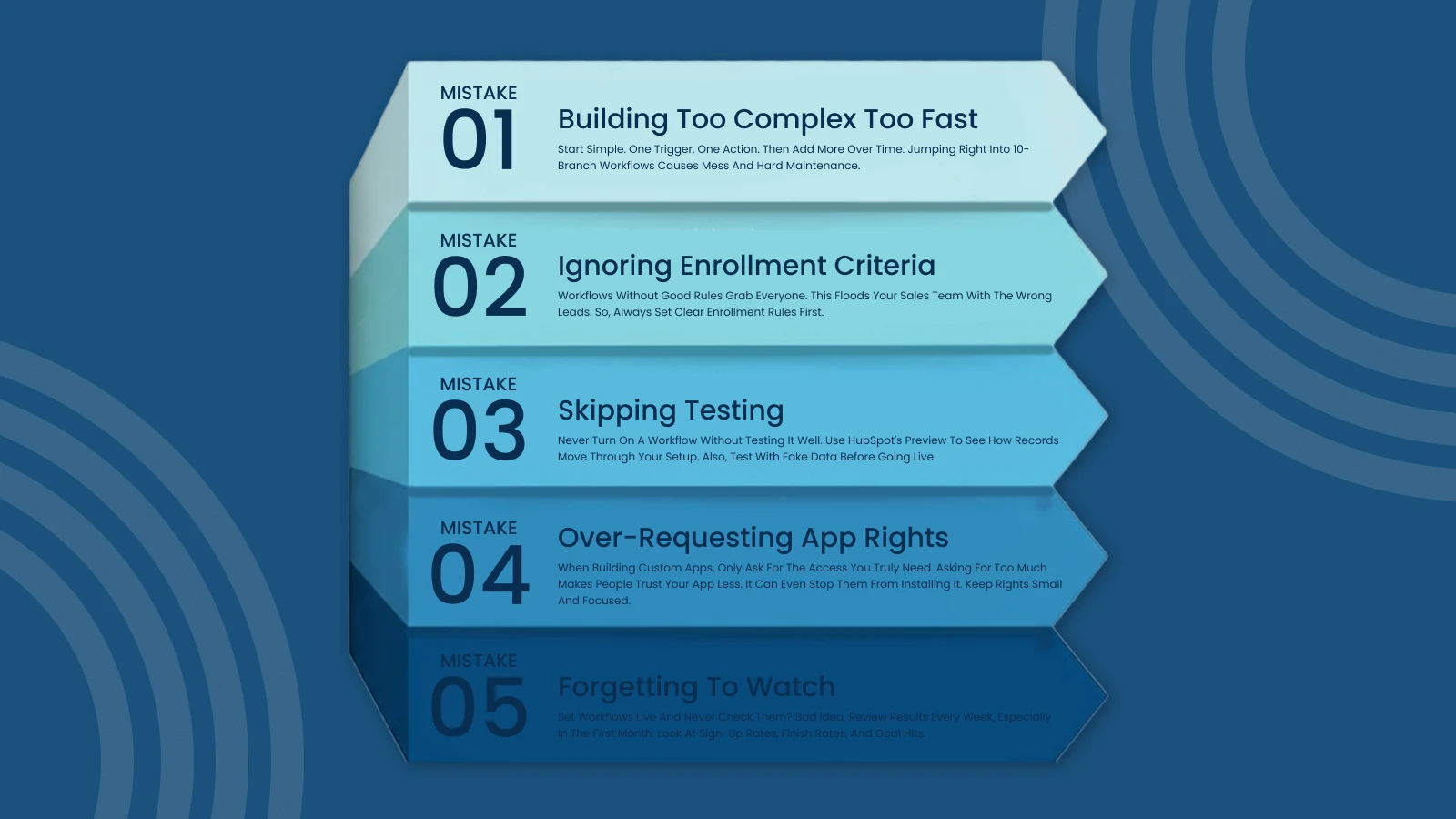
Mistake 1: Building Too Complex Too Fast
Start simple. One trigger, one action. Then add more over time. Jumping right into 10-branch workflows causes mess and hard maintenance.
Mistake 2: Ignoring Enrollment Criteria
Workflows without good rules grab everyone. This floods your sales team with the wrong leads. So, always set clear enrollment rules first.
Mistake 3: Skipping Testing
Never turn on a workflow without testing it well. Use HubSpot’s preview to see how records move through your setup. Also, test with fake data before going live.
Mistake 4: Over-Requesting App Rights
When building custom apps, only ask for the access you truly need. Asking for too much makes people trust your app less. It can even stop them from installing it. Keep rights small and focused.
Mistake 5: Forgetting to Watch
Set workflows live and never check them? Bad idea. Review results every week, especially in the first month. Look at sign-up rates, finish rates, and goal hits.
Ready to Unlock Advanced HubSpot Automation?
Turn HubSpot into a fully automated growth engine with custom workflows, integrations, and private apps built around your business processes.

Saurabh Sharma
Sr. Software Engineer
Insights that Drive Innovation
Read expert takes on custom software development, digital trends, and real-world
growth strategies — straight from the minds at TechMarcos.


Frequently Asked Questions For HubSpot Advanced Automation

What is the HubSpot workflow limit on different plans?
Free plans let you make 5 workflows. Starter plans give you 25. Professional and Enterprise plans have no limit. However, deep features like custom code need Enterprise.
Can I create multi-step workflows in HubSpot?
Yes, for sure. HubSpot lets you build complex workflows with many branches, rules, and delays. So, you can make paths that react to what each contact does.
How do I trigger workflows from external apps?
Three main ways work well here. Use webhooks for live event triggers. Call the HubSpot API from your own code. Or, use tools like Zapier for a no-code setup.
What are HubSpot custom objects?
Custom objects let you store unique data beyond the standard Contacts, Companies, Deals, and Tickets. They come with their own fields, links, and workflows. However, they need an Enterprise plan.
Can I build private apps for HubSpot?
Yes, absolutely. HubSpot’s builder tools support private app creation with full API access. So, private apps link your internal systems to HubSpot in a safe way.
How much does HubSpot charge for API calls?
API limits depend on your plan. Free and Starter plans allow 100 calls per 10 seconds. Professional and Enterprise plans raise this to 190 calls per 10 seconds with higher daily caps.
What programming languages work with HubSpot API?
Any language that can make HTTP calls works well. JavaScript, Python, and PHP are the most used. Still, Ruby, Java, and others work just as fine.